
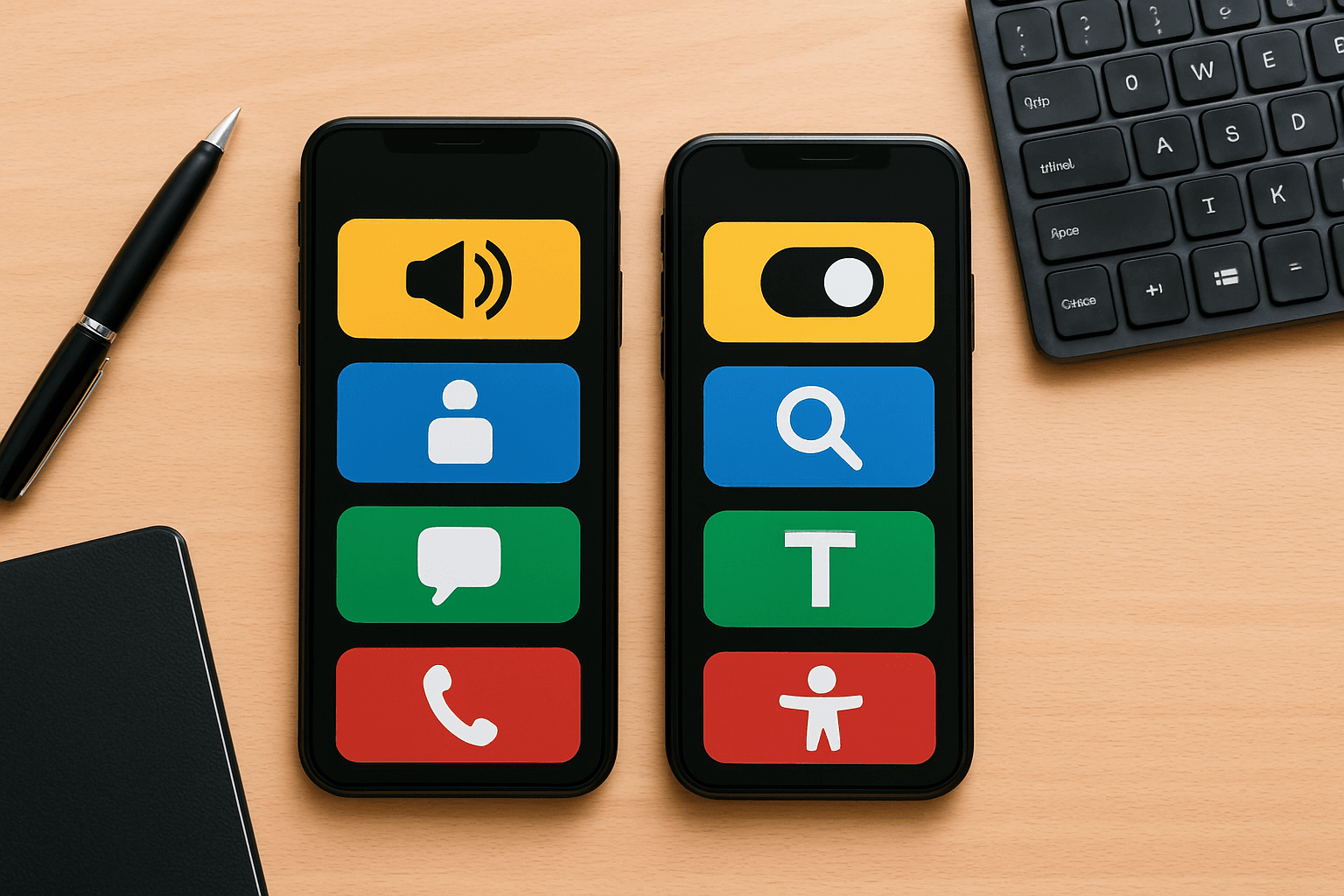

Best practices for designing accessible mobile interfaces enhance usability for diverse user groups
Best practices for designing accessible mobile interfaces are essential for creating digital products that serve all users effectively. These practices go beyond mere aesthetics to ensure that people with disabilities, varying screen sizes, and different interaction preferences can navigate and interact with mobile apps seamlessly. According to the World Health Organization, over 1 billion people live with some form of disability, making accessibility not just a moral imperative but also a business advantage. Designers who prioritize accessibility often see improved engagement metrics, reduced bounce rates, and broader market reach. This comprehensive guide explores the proven strategies and techniques to implement best practices for designing interfaces that are both beautiful and inclusive.

Accessibility in mobile interfaces requires a multifaceted approach that considers visual, auditory, motor, and cognitive abilities. The Web Content Accessibility Guidelines (WCAG) 2.2 provide a robust framework for evaluating and implementing accessibility features. These guidelines emphasize four core principles: perceivability, operability, understandability, and robustness. For mobile designers, this translates to ensuring text is readable without magnification, interactive elements are easy to activate, content is understandable regardless of user background, and the interface remains functional across different devices and assistive technologies. By adopting these best practices for designing accessible mobile interfaces early in the design process, teams can avoid costly retrofits and create products that resonate with a wider audience.
Understanding WCAG 2.2 Success Criteria
WCAG 2.2 success criteria are categorized into three levels of conformance: A (minimum), AA (recommended), and AAA (highest). For mobile interfaces, achieving at least AA compliance is considered the industry standard. Key success criteria relevant to mobile design include: This section covers practical details about Best practices for designing.
- 1.4.3 Contrast (Minimum): Text and interactive elements must have a contrast ratio of at least 4.5:1 for normal text and 3:1 for large text.
- 1.4.10 Reflow: Content must be adaptable to different screen sizes without loss of information or functionality.
- 2.1.1 Keyboard: All functionality must be accessible via keyboard navigation.
- 2.5.5 Target Size: Interactive elements must be at least 48×48 pixels in size.
These criteria serve as the foundation for designing accessible mobile interfaces. However, compliance should not be the sole focus; rather, designers should aim to exceed these standards to create truly inclusive experiences. For instance, while WCAG recommends a minimum contrast ratio of 4.5:1, using ratios closer to 7:1 can significantly improve readability for users with low vision or color blindness. In depth, Best practices for designing stands out as a core theme.
Contrast and Readability Best Practices for Mobile Interfaces
Best practices for designing accessible mobile interfaces prioritize contrast and readability as fundamental elements. Low contrast text is one of the most common barriers to accessibility, particularly for users with visual impairments or those accessing content in bright sunlight. Designers should ensure that text stands out against its background by using tools like the WebAIM Contrast Checker or Adobe Color’s accessibility features. For body text, a contrast ratio of 7:1 is ideal, while headings should aim for at least 4.5:1.
| Text Type | Minimum Contrast Ratio | Recommended Ratio | Example |
|---|---|---|---|
| Normal Text (18px or smaller) | 4.5:1 | 7:1 | Dark gray text on white background |
| Large Text (18px+ bold or 24px+) | 3:1 | 4.5:1 | Black text on light blue background |
| Graphical Objects | 3:1 | 4.5:1 | Icons with subtle drop shadows |
| Disabled States | 3:1 | N/A | Grayed-out buttons with dark text |
| Focus Indicators | 3:1 | N/A | Dashed outlines around interactive elements |
Font selection also plays a crucial role in readability. Sans-serif fonts like Open Sans or Roboto are generally preferred for mobile interfaces due to their clean lines and ease of reading on small screens. Avoid decorative or script fonts that may be difficult to decipher, especially at smaller sizes. Additionally, designers should allow users to adjust font sizes within the app, as some users may require larger text to comfortably read content. Implementing dynamic type settings in iOS or similar features in Android ensures that your app adapts to system-wide accessibility preferences. Applying Best practices for designing knowledge helps in real situations.
Optimal Font Sizing and Spacing
Best practices for designing accessible mobile interfaces dictate specific guidelines for font sizing and spacing to enhance readability. The recommended base font size for mobile interfaces is 16px, which provides a comfortable reading experience for most users. However, designers should test their interfaces at various font sizes to ensure content remains legible when users adjust their device settings. Line height is equally important; a line height of 1.5 times the font size typically offers the best balance between readability and space efficiency. For headings, a line height of 1.2 to 1.3 is often sufficient to maintain visual hierarchy without creating excessive white space.
Letter spacing (tracking) and word spacing also contribute to readability. Increasing letter spacing by 0.12 to 0.15 em for body text can improve readability for users with dyslexia or cognitive disabilities. Similarly, word spacing should be at least 0.16 em to prevent text from appearing as a continuous block. These subtle adjustments can make a significant difference in how users perceive and interact with your content. In summary, you can take informed steps on Best practices for designing.
Optimizing Touch Targets for All Users in Mobile Design
Best practices for designing accessible mobile interfaces emphasize the importance of touch targets, as these elements directly impact users with motor disabilities or limited dexterity. Small touch targets can lead to mis-taps, frustration, and accidental activations, particularly for users with Parkinson’s disease, arthritis, or tremors. The WCAG 2.2 success criterion 2.5.5 mandates that touch targets must be at least 48×48 pixels in size. However, aiming for larger targets (60×60 pixels) can further enhance usability, especially for critical actions like “Submit” or “Buy Now” buttons.
Minimum Touch Target Sizes and How to Implement Them
While the 48×48 pixel minimum is a good starting point, designers should consider the context in which touch targets are used. For example, buttons placed near the edges of the screen can be slightly smaller (44×44 pixels) without compromising usability, as users tend to avoid the edges when interacting with their devices. However, buttons in the middle of the screen should adhere to the 48×48 pixel rule to prevent accidental activations. For complex interfaces with multiple interactive elements, increasing touch target sizes to 56×56 pixels can reduce errors and improve the overall user experience. Overall, Best practices for designing is valuable for anyone exploring this topic.
Implementing larger touch targets requires careful planning, particularly in dense layouts. One effective strategy is to increase the padding around interactive elements rather than enlarging the elements themselves. This approach maintains visual consistency while ensuring that users can easily tap their intended targets. For instance, a button with 8 pixels of padding can be transformed into a more accessible target by increasing the padding to 24 pixels on all sides, making the effective touch area much larger without changing the button’s appearance. Learning about Best practices for designing makes a real difference.
Spacing Guidelines for Interactive Elements
Best practices for designing accessible mobile interfaces include specific spacing guidelines to prevent accidental activations and improve navigation. The WCAG 2.2 success criterion 2.5.3 recommends that touch targets are separated by at least 8 pixels of space to avoid confusion. However, for users with motor disabilities, increasing this spacing to 12-16 pixels can significantly reduce errors. For critical actions, such as “Delete” or “Cancel,” designers should consider increasing the spacing to 24 pixels to ensure users can distinguish between adjacent elements.
Another important consideration is the placement of touch targets. Interactive elements should be positioned in areas of the screen that are easily reachable for all users, regardless of hand size or grip. For right-handed users, placing primary actions (e.g., “Buy Now”) in the right half of the screen reduces the need to stretch their thumb, which can be difficult for users with limited mobility. Similarly, avoiding the placement of interactive elements too close to the bottom of the screen can prevent accidental activations when users hold their devices with one hand. Research on Best practices for designing reveals interesting findings.
Navigation Structure and Hierarchy in Accessible Mobile Interfaces
Best practices for designing accessible mobile interfaces focus heavily on navigation structure, as clear and intuitive navigation is essential for users with cognitive disabilities or limited technical proficiency. Mobile users often rely on familiar patterns, such as bottom navigation bars or hamburger menus, to orient themselves within an app. However, these patterns must be implemented thoughtfully to ensure they are accessible to all users. For example, hamburger menus can be difficult for users with motor disabilities to open, particularly if the menu icon is small or placed in an awkward location.
Statistical Data: Best practices for designing accessible mobile int
A well-structured navigation system should prioritize simplicity and consistency. Designers should limit the number of primary navigation options to five or fewer to prevent cognitive overload. Secondary navigation, such as tabs or side menus, can be used for less critical actions, but these should be clearly labeled and easily accessible. For users with screen readers, providing a “Skip to Content” link at the top of the page allows them to bypass repetitive navigation elements and access the main content directly. This feature is particularly useful for users who rely on assistive technologies to navigate digital interfaces. Understanding Best practices for designing is key to success in this area.
Supporting Gesture-Based Navigation
Best practices for designing accessible mobile interfaces include supporting both touch and gesture-based navigation. While gestures can enhance the user experience, they can also create barriers for users with motor disabilities or limited dexterity. Designers should ensure that all functionality is accessible via traditional touch interactions, even if gestures are the primary method of navigation. For example, a swipe gesture to delete an item should always be accompanied by a traditional “Delete” button or a long-press option.
Additionally, designers should provide visual feedback to indicate that gestures are available. For instance, a subtle animation or a tooltip can inform users that a swipe gesture is required to perform a specific action. This feedback is crucial for users with cognitive disabilities, who may benefit from explicit instructions rather than relying on intuitive gestures. By supporting multiple interaction methods, designers can create more inclusive and flexible navigation systems. This section covers practical details about Best practices for designing.
Color Blindness and Visual Accessibility in Mobile Design
Best practices for designing accessible mobile interfaces require careful consideration of color blindness and other visual impairments. Approximately 1 in 12 men and 1 in 200 women experience some form of color blindness, making it essential to design interfaces that are not solely reliant on color to convey information. Designers should use a combination of color, patterns, textures, and labels to ensure that content is accessible to all users. For example, a chart that uses only color to differentiate data points should include additional visual cues, such as labels or patterns, to accommodate users with color blindness.
| Color Blindness Type | Affected Colors | Accessibility Tip | Example |
|---|---|---|---|
| Protanopia | Red-Green | Use patterns or labels | Red and green buttons with diagonal stripes |
| Deuteranopia | Red-Green | Add icons or text labels | Green buttons with checkmark icons |
| Tritanopia | Blue-Yellow | Use high-contrast colors | Blue and yellow text with underline |
| Achromatopsia | All Colors | Use textures or patterns | Solid color buttons with crosshatch patterns |
Designers should also test their interfaces using tools like the Color Oracle or Adobe Photoshop’s color blindness simulators to identify potential issues. Additionally, providing users with the ability to customize color schemes within the app can enhance accessibility. For example, allowing users to switch to a high-contrast mode or adjust the color palette can make the interface more usable for individuals with visual impairments. By incorporating these best practices for designing accessible mobile interfaces, designers can create products that are both visually appealing and inclusive.
Ensuring Icon Accessibility
Best practices for designing accessible mobile interfaces extend to icon design, as icons are a universal language that transcends language barriers. However, icons can be difficult to interpret for users with cognitive disabilities or limited familiarity with digital interfaces. Designers should ensure that icons are accompanied by clear labels or tooltips to provide context. For example, a magnifying glass icon for search functionality should include the word “Search” next to it to avoid ambiguity.
Another important consideration is the use of universally recognized icons. While some icons, such as the shopping cart or home icon, are widely understood, others may require additional explanation. Designers should conduct user testing to validate the effectiveness of iconography and make adjustments as needed. For users with screen readers, providing alternative text for icons ensures that the functionality is communicated effectively. By combining clear labeling with universally recognized symbols, designers can create icons that are both aesthetically pleasing and accessible. In depth, Best practices for designing stands out as a core theme.
Supporting Assistive Technologies in Mobile Design
Best practices for designing accessible mobile interfaces require designers to consider the diverse range of assistive technologies used by individuals with disabilities. Screen readers, such as VoiceOver for iOS and TalkBack for Android, are among the most commonly used tools, allowing users with visual impairments to navigate digital interfaces. Designers must ensure that their interfaces are compatible with these technologies by providing proper semantic markup, labels, and alternative text for images. For example, using ARIA (Accessible Rich Internet Applications) roles and attributes can enhance the usability of interactive elements for screen reader users.
Other assistive technologies, such as switch controls, eye-tracking devices, and voice recognition software, also require careful consideration. Designers should test their interfaces with these tools to ensure compatibility and usability. For instance, interfaces that rely heavily on touch interactions may need to include alternative input methods for users who cannot use their hands. By supporting a wide range of assistive technologies, designers can create mobile interfaces that are truly inclusive and accessible to all users. Applying Best practices for designing knowledge helps in real situations.
Designing for Voice Control
Best practices for designing accessible mobile interfaces include supporting voice control, as this feature can significantly enhance usability for users with motor disabilities or limited dexterity. Voice control allows users to navigate interfaces, input text, and perform actions using voice commands. Designers should ensure that all interactive elements are accessible via voice control and that labels are clear and consistent. For example, a button labeled “Submit” should always use the same label when accessed via voice control to avoid confusion.
Designers should also provide visual feedback to indicate that voice control is active. For instance, a subtle animation or a tooltip can inform users that they can use voice commands to interact with the interface. Additionally, designers should ensure that voice control is supported across different languages and dialects to accommodate a diverse user base. By incorporating voice control into their designs, designers can create interfaces that are more flexible and accessible. In summary, you can take informed steps on Best practices for designing.
Testing Methods for Accessibility Compliance in Mobile Design
Best practices for designing accessible mobile interfaces include rigorous testing to ensure compliance with accessibility standards. Manual testing, automated testing, and user testing are all essential components of an effective accessibility testing strategy. Manual testing involves evaluating the interface against WCAG guidelines using tools like the WebAIM Contrast Checker or axe DevTools. Automated testing tools, such as Lighthouse or Pa11y, can quickly identify common accessibility issues, such as missing alt text or improper heading structure. However, automated tools should be complemented by manual testing to catch issues that require human judgment.
User testing is the most effective way to validate the accessibility of an interface. Designers should conduct usability tests with individuals who have disabilities to gather feedback on the user experience. For example, testing with screen reader users can reveal issues with navigation or content structure that may not be apparent through automated testing. Similarly, testing with users who have motor disabilities can highlight problems with touch targets or gesture-based interactions. By incorporating user testing into the design process, teams can identify and address accessibility barriers before they reach the final product. Overall, Best practices for designing is valuable for anyone exploring this topic.
Leveraging Automated Testing Tools
Best practices for designing accessible mobile interfaces include using automated testing tools to streamline the accessibility compliance process. Tools like Lighthouse, axe, and WAVE can quickly scan interfaces for common accessibility issues, such as missing alt text, improper contrast ratios, or incorrect heading structure. These tools provide actionable insights that designers can use to improve their interfaces. For example, axe can identify buttons that lack accessible names, allowing designers to add proper labels or ARIA attributes.
However, automated testing tools should not be relied upon exclusively. They are excellent for catching technical issues but may miss more nuanced problems that require human judgment. For instance, automated tools may not detect if an icon is ambiguous or if a color scheme is difficult to interpret for users with color blindness. By combining automated testing with manual testing and user feedback, designers can create interfaces that are both technically compliant and truly accessible. Learning about Best practices for designing makes a real difference.
Conducting Effective User Testing
Best practices for designing accessible mobile interfaces emphasize the importance of user testing with individuals who have disabilities. User testing provides invaluable insights into how real users interact with an interface and highlights barriers that may not be apparent through automated testing. Designers should recruit participants with a range of disabilities, including visual, motor, and cognitive impairments, to ensure that the interface is tested under realistic conditions.
During user testing sessions, designers should observe how users navigate the interface, identify any difficulties they encounter, and ask for feedback on specific elements. For example, a user with a motor disability may struggle to tap small buttons, while a user with a cognitive disability may find complex navigation structures overwhelming. By addressing these issues during the design process, teams can create interfaces that are more intuitive and accessible for all users. Research on Best practices for designing reveals interesting findings.
Common Mistakes to Avoid in Accessible Mobile Design
Best practices for designing accessible mobile interfaces are often undermined by common mistakes that designers make during the process. One of the most prevalent issues is relying solely on color to convey information. For example, using only red and green to indicate success or failure can exclude users with color blindness. Designers should always use additional visual cues, such as icons or labels, to ensure that content is accessible to all users. Another common mistake is neglecting to test interfaces with real users who have disabilities. Automated testing tools are useful, but they cannot replace the insights gained from user testing.
Another frequent oversight is failing to consider the context in which users interact with mobile interfaces. For example, designing an interface that works well in a quiet, well-lit environment may not be suitable for users accessing the app in a noisy, brightly lit public space. Designers should test their interfaces in various environments to ensure that they remain usable under different conditions. Additionally, ignoring the importance of touch targets can lead to frustrating user experiences. Small buttons or links that are difficult to tap can drive users away, particularly those with motor disabilities.
Overlooking Dynamic Content and Updates
Best practices for designing accessible mobile interfaces require designers to consider dynamic content and real-time updates. Interfaces that rely on dynamic content, such as live chat or notifications, must ensure that these updates are accessible to all users. For example, screen reader users should be notified when new content is loaded, and interactive elements within dynamic content should be fully operable via keyboard or voice control. Designers should also provide clear instructions on how to access and interact with dynamic content to avoid confusion.
Another common mistake is failing to provide feedback for user actions. For example, a button that changes color when tapped should include additional feedback, such as a sound or vibration, to confirm that the action was successful. This feedback is particularly important for users with visual impairments, who may not be able to see the visual change. By addressing these issues, designers can create interfaces that are more responsive and user-friendly.
Ignoring System-Wide Accessibility Settings
Best practices for designing accessible mobile interfaces include respecting system-wide accessibility settings. For example, interfaces should adapt to changes in font size, contrast, or color schemes that users configure in their device settings. Designers who ignore these settings risk creating interfaces that are unusable for individuals with visual impairments. Additionally, interfaces should support features like dark mode, which can reduce eye strain for users with light sensitivity. By aligning with system-wide settings, designers can create interfaces that feel intuitive and personalized for all users.
Essential Tools and Resources for Designers
Best practices for designing accessible mobile interfaces are supported by a wide range of tools and resources that can streamline the design and testing process. These tools help designers identify accessibility barriers, implement best practices, and validate their work against industry standards. From contrast checkers to screen reader simulators, these resources are invaluable for creating inclusive digital products. Below are some of the most effective tools and resources available to designers today.
Designers should start with foundational tools like the WebAIM Contrast Checker and Color Contrast Analyser, which allow users to test color combinations for compliance with WCAG guidelines. For icon and image accessibility, tools like Adobe Photoshop and Figma offer features to add alternative text and ensure proper contrast. Prototyping tools like Figma also allow designers to create interactive mockups that can be tested with real users.
For developers, libraries and frameworks like <a href=”https://reactjs.org
Visit 🔰 Engaging Product Descriptions for Higher Sales for expert guides and tutorials.
Frequently Asked Questions
📚 Related Articles:
- Best mobile applications of 2026 you must try 10
- The impact of 5G technology on mobile apps in 2023
What is Best practices for designing?
This guide explains the essential ideas and practical applications.
Why does it matter?
Reliable information helps you make better decisions.
How do I get started?
Start with this article, then explore related guides on our website.
Who is it for?
Beginners and experienced readers alike will find value here.