
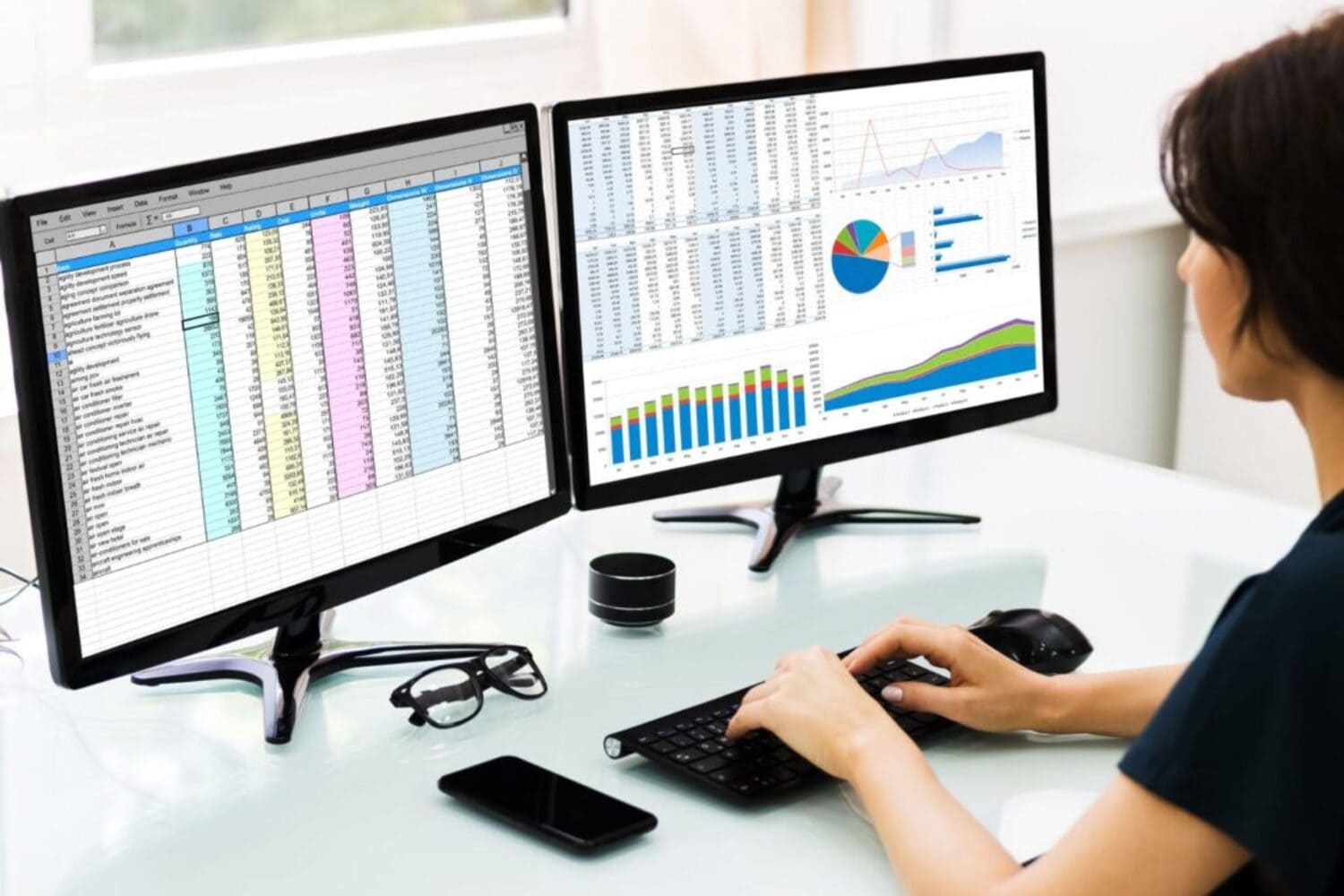

Setup Dual Monitors Windows 11: Complete Setup Guide
Setting up a productive and efficient workspace starts with the right display configuration. If you want to expand your screen real estate and improve your workflow, learning how to setup dual monitors Windows 11 is a must. Whether you’re a remote worker, gamer, or content creator, this step-by-step guide will walk you through everything — from hardware connections and display settings to advanced tips and troubleshooting. By the end of this tutorial, you’ll be able to transform your single-screen setup into a fully optimized dual-monitor experience on Windows 11.
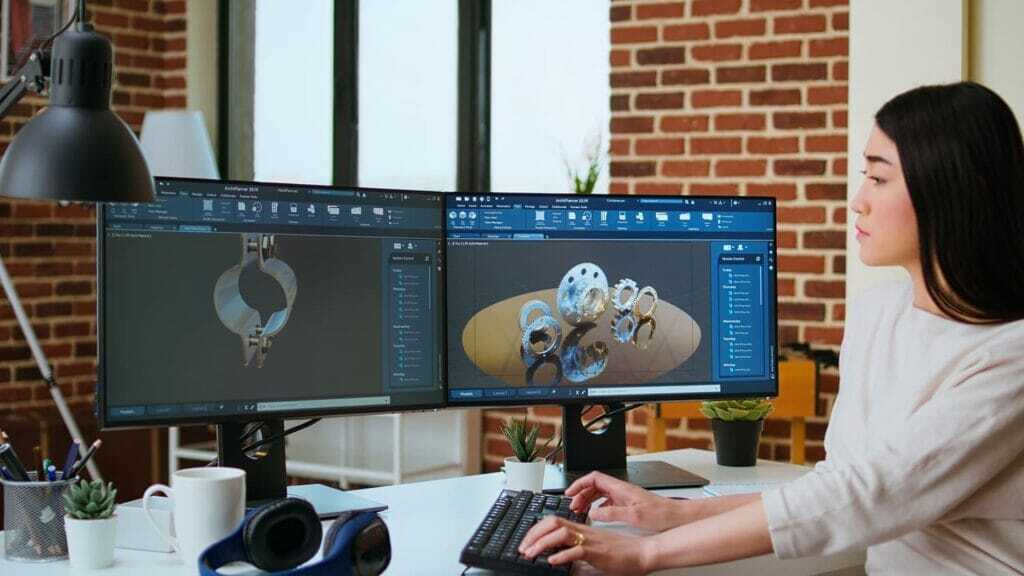
✅Setup Dual Monitors Windows 11: Start Here
Before diving into cables and display settings, it’s essential to ensure your system is ready for the job. To setup dual monitors Windows 11 successfully, you need to check for the right ports on your device (HDMI, DisplayPort, USB-C, or VGA) and confirm that your GPU supports multiple displays. Most modern laptops and desktops come with at least two video outputs, but checking compatibility first will save you time and effort later.
Whether you’re using an external monitor with a laptop or connecting two standalone screens to a desktop, a clean and efficient setup starts with matching the correct ports to compatible cables. This foundational step guarantees a stable display experience throughout your dual monitor journey on Windows 11.
Check System Compatibility and Ports
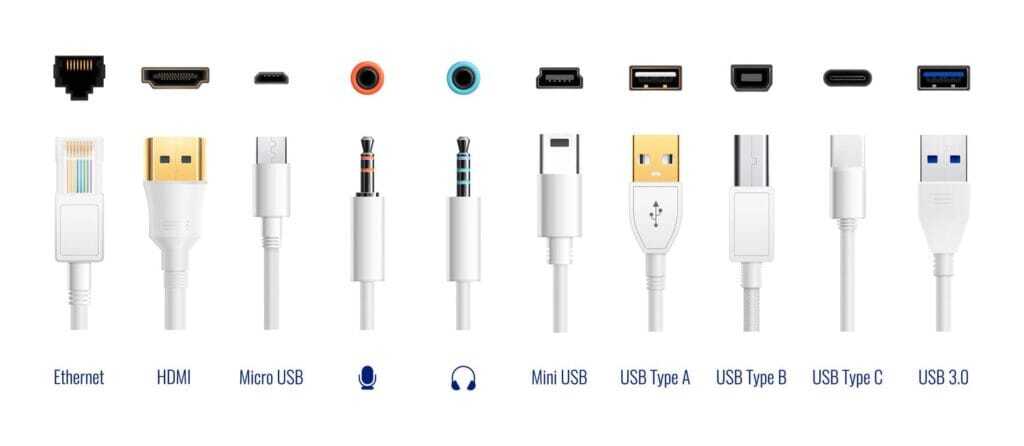
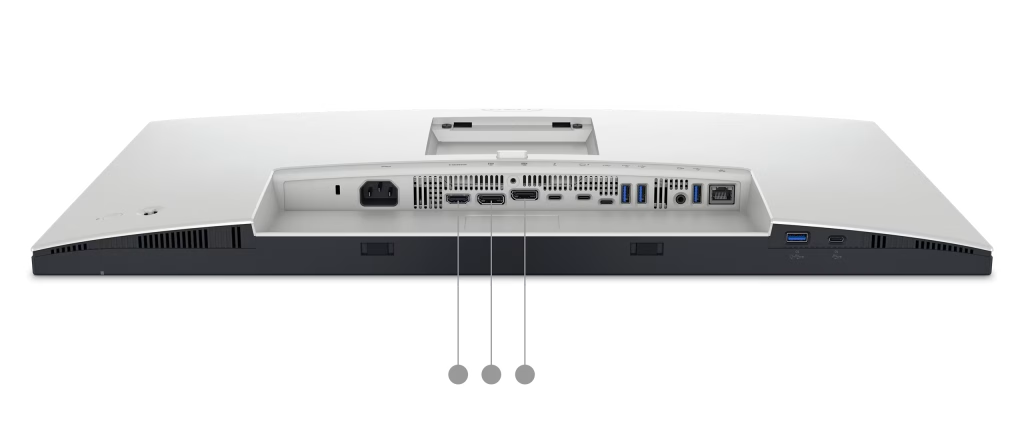
Before you connect anything, check that your device supports dual displays. Most modern PCs and laptops with dedicated or integrated graphics support at least two monitors. Look for available video output ports on your machine — such as HDMI, DisplayPort, USB-C, or older VGA if applicable. If your computer has only one port, you might need a docking station or a USB-to-HDMI adapter.
Also, visit your GPU manufacturer’s website (Intel, NVIDIA, or AMD) to verify multi-display capability. Knowing your hardware limits upfront ensures you can setup dual monitors Windows 11 without hiccups later in the process.
💡 Pro Tip:
Setup dual monitors Windows 11: Use the Win + P shortcut on your keyboard to quickly test if Windows 11 detects a second monitor even before physically adjusting display settings.
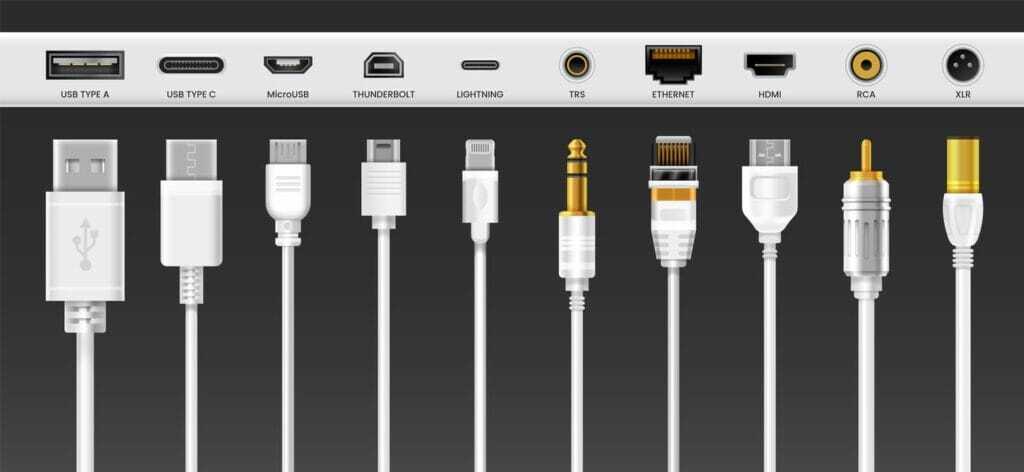
Choose the Right Cables (HDMI, DisplayPort, USB-C)
Selecting the correct cables is key to ensuring a smooth and high-quality display experience. Depending on your monitor and PC ports, you’ll need HDMI, DisplayPort, USB-C, or VGA cables. For most modern setups, HDMI is the standard choice, offering up to 4K resolution. DisplayPort is preferred for high-refresh-rate monitors, especially for gaming or video editing. USB-C with DisplayPort Alt Mode is common on newer laptops and provides both power and video over a single cable.
Make sure the cable length fits your desk layout and avoid using cheap or unshielded cables to prevent screen flickering or resolution drops. This simple choice plays a big role in how reliably you setup dual monitors Windows 11.
💡 Pro Tip:
Setup dual monitors Windows 11: Want 144Hz or 4K? Go with DisplayPort 1.4 or HDMI 2.1 cables. Not all cables are made equal—check version numbers for max performance!
Physically Connect Your Monitors to the PC
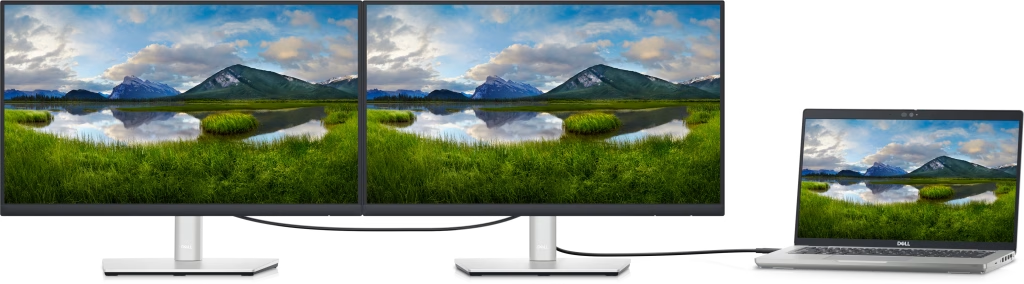
Once you’ve identified the correct ports and selected the appropriate cables, it’s time to physically connect your monitors. Plug one end of each cable into the monitor and the other into your PC or laptop. If you’re using a docking station, ensure it’s powered and supports video output.
After plugging in the displays, turn everything on. In many cases, Windows 11 will automatically detect both screens and extend the desktop. If not, don’t worry — we’ll guide you through display settings in the next steps to properly setup dual monitors Windows 11 with full control over layout and resolution.
💡 Pro Tip:
Setup dual monitors Windows 11: Always plug in the primary monitor first, especially if one is HDMI and the other is DisplayPort — this helps Windows assign the right display as “Monitor 1.”
✅ Configure Display Settings in Windows 11
Once your monitors are physically connected, it’s time to configure how they behave in the Windows interface. To properly setup dual monitors Windows 11, you’ll need to access the Display settings and adjust arrangement, resolution, and display modes to fit your workflow.
This section will walk you through everything from detecting your screens to setting up an extended display for multitasking.
Open Display Settings via Right-Click or Settings App
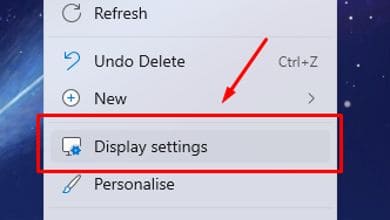
To begin, right-click anywhere on the desktop and select “Display settings.” Alternatively, go to Start → Settings → System → Display. This will open the main window where you can see and manage all connected screens.
From this panel, you’ll get an overview of your monitor arrangement and access to customization options like scaling, resolution, and orientation. This is the control center for your dual-monitor setup.
💡 Pro Tip:
Setup dual monitors Windows 11: Pin “Display settings” to your taskbar for easy access, especially if you switch between single and dual displays often.
Detect and Rearrange Your Screens
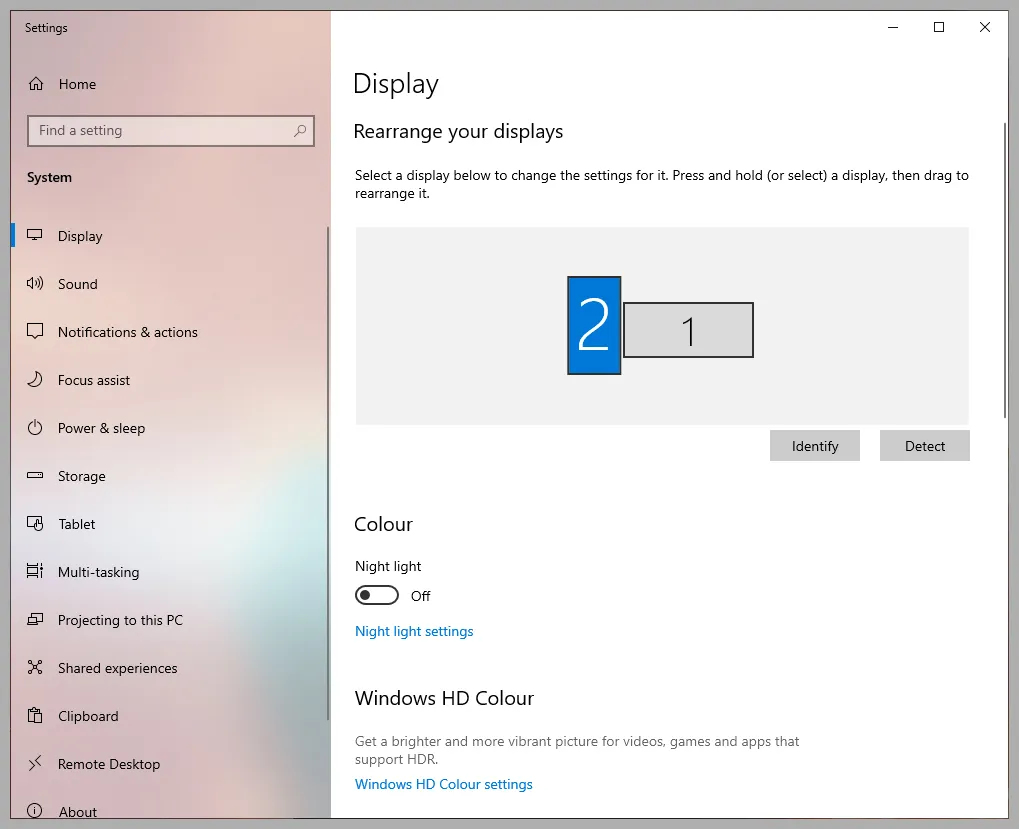
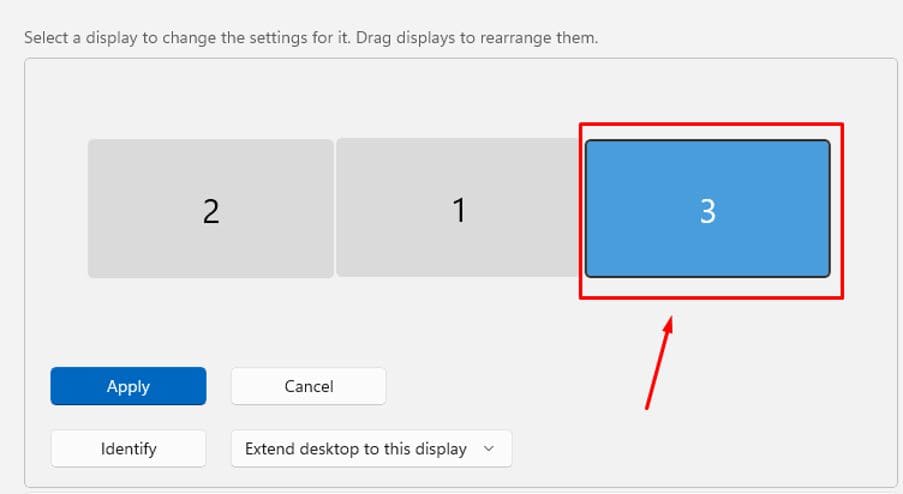
Sometimes, Windows 11 may not immediately recognize both monitors after connection. In the Display Settings panel, scroll down and click the “Detect” button if one of your monitors doesn’t appear. Once both screens are recognized, you’ll see numbered boxes representing each display.
Drag and drop these boxes to match the physical placement of your monitors on your desk (e.g., left/right or stacked). This ensures that your mouse moves naturally between screens. For example, dragging a window leftward will send it to the left monitor — only if the software layout matches your actual setup. Getting this step right is essential when you setup dual monitors Windows 11 for seamless workflow.
💡 Pro Tip:
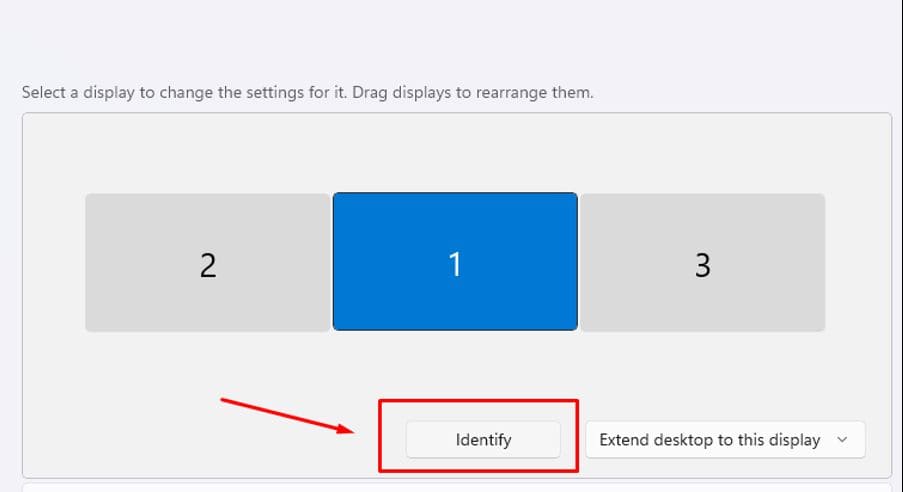
Setup dual monitors Windows 11: Click the “Identify” button to flash the screen number on each monitor — this helps match physical and digital positioning instantly.
Set Display Mode: Extend, Duplicate, or Second Screen Only
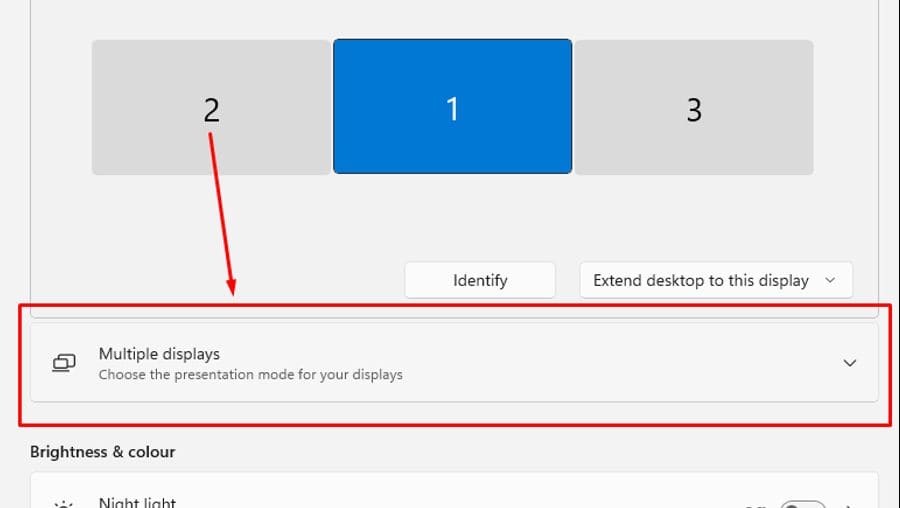
Windows 11 offers several display modes, and choosing the right one depends on how you plan to use your second monitor. To access these options, scroll to the “Multiple displays” section in the Display settings panel or press Win + P for the quick selection sidebar.
- Extend creates one large workspace across both monitors — ideal for multitasking and productivity.
- Duplicate mirrors your main screen — best for presentations.
- Second screen only disables your main display and uses only the second monitor — useful for docked setups.
For most users, especially remote workers or creatives, the Extend option is the preferred mode to setup dual monitors Windows 11 efficiently and get the most out of both screens.
💡 Pro Tip:
Setup dual monitors Windows 11: Use Win + P → Extend shortcut before logging in — it remembers your preference for next boot!
Adjust Resolution, Scale, and Orientation
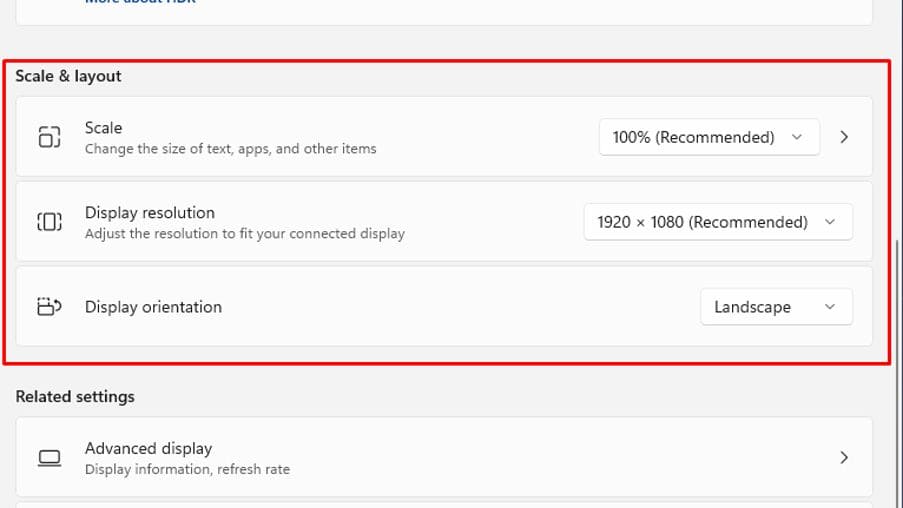
Once your display mode is set, it’s time to fine-tune the visual quality and layout. Under each monitor’s section in Display Settings, you’ll find options for Display resolution, Scale, and Display orientation. Windows 11 usually auto-detects the optimal resolution, but you can manually adjust it for specific needs — like 1920×1080 for general use or 2560×1440/4K for higher clarity.
Scaling controls how large text and UI elements appear. If one monitor is larger or higher resolution than the other, adjusting scale to 100%, 125%, or 150% can ensure readability without distorting layouts. Orientation is useful for vertical monitor setups, where you rotate the screen 90 degrees for coding or document viewing.
These adjustments make your setup dual monitors Windows 11 experience truly customized and comfortable for long sessions.
💡 Pro Tip:
Setup dual monitors Windows 11: For mixed-resolution setups (e.g., 1080p + 4K), set the higher-res monitor as primary and adjust the other’s scale — this keeps your taskbar and apps looking sharp.
Make One Monitor the Primary Display
Your primary display is where the Start menu, taskbar, desktop icons, and default windows will appear. In dual monitor setups, assigning the correct screen as primary ensures a smooth workflow. To set it, go to Display Settings, select the monitor you want as main, then check the box that says “Make this my main display.”
For example, if your larger monitor is on the left but Windows sees it as Display 2, setting it as primary will align system behavior with your physical layout. This is especially important when using apps that default to launching on Monitor 1. Getting this right finalizes the visual hierarchy and improves the usability of your setup dual monitors Windows 11 configuration.
💡 Pro Tip:
Setup dual monitors Windows 11: If the checkbox is greyed out, it means that display is already set as primary — try switching monitors and toggling back to refresh the assignment. (Setup dual monitors Windows 11)

✅ Using Wireless or USB Display Adapters
Not every setup needs physical cables. If you’re using a tablet, ultrabook, or simply want a cleaner workspace, wireless display options or USB-based adapters can help you setup dual monitors Windows 11 without clutter.
Windows 11 natively supports Miracast, allowing compatible monitors, TVs, or dongles (like Microsoft Wireless Display Adapter) to connect wirelessly. For devices lacking additional HDMI or DisplayPort outputs, USB-to-HDMI adapters or USB-C docks are excellent alternatives. Just ensure they support video output (not all USB-C ports do).
How to Use Miracast for Wireless Monitor Setup
Miracast is a built-in wireless display protocol in Windows 11 that allows you to project your screen to a compatible TV or monitor without cables. To get started, make sure both your PC and your secondary display support Miracast. Most modern smart TVs and Microsoft’s Wireless Display Adapter are Miracast-ready by default.
On your PC, go to Settings → Display → Multiple Displays and click “Connect to a wireless display.” Your system will scan for nearby Miracast devices. Once your monitor appears in the list, select it and wait for the pairing to complete. After a few seconds, your extended display should be active. This is a great way to setup dual monitors Windows 11 when physical space or cabling is limited.
💡 Pro Tip:
Setup dual monitors Windows 11: Press Win + K to open the quick wireless display menu — a shortcut that instantly lists all Miracast-ready devices.
Connect External Monitors via USB Display Adapters
If your laptop or PC has limited video ports, a USB display adapter can be the perfect workaround. These adapters convert USB-A or USB-C ports into HDMI, DisplayPort, or even VGA outputs — letting you connect an extra monitor without needing a second native video port.
To use one, simply plug the adapter into your computer, then connect the monitor as you would normally. Most modern USB display adapters install drivers automatically in Windows 11, but for best results, it’s a good idea to download the latest drivers from the manufacturer’s website. This method is particularly useful when you setup dual monitors Windows 11 on slim laptops or tablets with limited I/O.
💡 Pro Tip:
Setup dual monitors Windows 11: Use USB 3.0 or USB-C ports for better bandwidth — avoid USB 2.0, which may limit video quality or cause lag on high-resolution monitors..
✅ Advanced Display Tips & Multi-Monitor Productivity
Once you’ve nailed the basics, it’s time to unlock the full potential of your dual-monitor setup. Windows 11 includes several features that can supercharge your productivity — from taskbar management to smart window snapping.
This section will show you how to go beyond just setup dual monitors Windows 11, and actually use them like a pro: better window control, smoother multitasking, and powerful third-party tools.
Customize Taskbar Behavior for Each Monitor
By default, Windows 11 mirrors the taskbar across all screens. But you can tailor this behavior to match your workflow. Go to Settings → Personalization → Taskbar → Taskbar Behaviors, and you’ll find options like:
- Show taskbar on all displays
- Show taskbar buttons only on the main taskbar
- Show taskbar buttons on the taskbar where the window is open
Choosing the right layout declutters your workspace and helps reduce eye movement between screens — a subtle but powerful tweak when you setup dual monitors Windows 11 for professional use.
💡 Pro Tip:
Setup dual monitors Windows 11: Enable “Show my taskbar apps only on the monitor where the window is open” to avoid confusion when using multiple apps on separate screens.
Use Shortcuts to Move Windows Between Screens
Efficiency is everything when working with multiple displays. Instead of dragging windows with your mouse, Windows 11 lets you move apps between monitors using simple keyboard shortcuts. Press Win + Shift + Left Arrow or Win + Shift + Right Arrow to instantly send the active window to the adjacent screen.
This is especially useful when you’re in the flow — switching documents, browsers, or design apps across screens without breaking your rhythm. For users who setup dual monitors Windows 11 to improve productivity, mastering these shortcuts can save hours each week.
💡 Pro Tip:
Setup dual monitors Windows 11: Combine this with Win + Arrow keys to instantly snap windows left, right, or maximize them after moving across screens.
Enable ‘Remember Window Locations’ Option
One of the most frustrating parts of using multiple monitors is having to reorganize your windows every time you reboot or disconnect a screen. Thankfully, Windows 11 includes a smart feature that remembers where your apps were last opened.
To enable it, go to Settings → System → Display → Multiple Displays and check the box that says “Remember window locations based on monitor connection.” With this setting enabled, your windows will return to their last positions automatically — even after unplugging and reconnecting a monitor. It’s a subtle but powerful tool to stabilize your setup dual monitors Windows 11 experience.
💡 Pro Tip:
Setup dual monitors Windows 11: Also enable “Minimize windows when a monitor is disconnected” to prevent apps from stacking or getting lost off-screen.
Best Free Tools: DisplayFusion, UltraMon, PowerToys
While Windows 11 offers solid built-in support for dual monitors, third-party tools can elevate your setup to the next level. Three standout utilities include:
- DisplayFusion – Offers multi-monitor taskbars, window snapping profiles, and advanced wallpaper settings. Ideal for managing 2+ screens efficiently.
- UltraMon – Lightweight and focused. Adds extended taskbars, display profiles, and smart window positioning features.
- Microsoft PowerToys – Includes FancyZones, a powerful window tiling tool that lets you create custom grid layouts across screens.
These apps give you more granular control, making it easier to setup dual monitors Windows 11 with advanced layouts, behaviors, and even automation.
💡 Pro Tip:
Setup dual monitors Windows 11: Use DisplayFusion to assign specific applications to specific monitors — great for streamers, designers, or traders who need persistent window placement.
✅ Desk Ergonomics and Monitor Placement
A dual monitor setup isn’t just about screen space — it’s also about comfort and long-term usability. Poorly positioned monitors can lead to eye strain, neck pain, and reduced productivity. Once you setup dual monitors Windows 11, the next step is optimizing their physical placement for a healthier workspace.
This section covers how to align your monitors, choose the best height and angle, and reduce desk clutter with mounts and cable management solutions.
Eye-Level Monitor Setup
Your primary monitor should be at eye level, with the top edge of the screen aligning with your line of sight when sitting upright. This helps reduce neck bending and eye fatigue. If you’re using two monitors side-by-side, angle them slightly inward to create a natural viewing arc.
Place your keyboard and chair so that your eyes land directly in the center of the main screen. This small adjustment can make a huge difference in comfort during long work sessions.
💡 Pro Tip:
Setup dual monitors Windows 11: Use monitor risers or stack books under your screen to fine-tune height without expensive gear.
Use Monitor Arms or VESA Mounts
If you want more flexibility and desk space, consider mounting your monitors using VESA-compatible monitor arms. These adjustable arms allow you to tilt, swivel, and rotate your screens into the perfect position — whether side-by-side, stacked, or angled.
Monitor arms free up valuable desk space by lifting your displays off the surface, which is especially useful for compact setups. They also make it easier to achieve optimal eye-level alignment and reduce glare. When you setup dual monitors Windows 11, adding a VESA solution enhances both the look and feel of your workspace.
💡 Pro Tip:
Setup dual monitors Windows 11: Make sure your monitor supports the VESA standard (usually 75x75mm or 100x100mm) before purchasing arms or wall mounts.
Cable Management and Desk Space Optimization.
A clean and clutter-free desk isn’t just visually pleasing — it also improves focus and efficiency. When you setup dual monitors Windows 11, you’re likely dealing with extra HDMI/DisplayPort cables, power cords, USB hubs, and possibly docking stations. Without proper cable management, things can get messy fast.
Use cable sleeves, zip ties, and under-desk trays to route cords neatly behind the monitors or along desk edges. Keep bulky adapters or extension hubs out of sight using adhesive mounts or velcro straps. This not only keeps your desk organized, but also prevents wear and tear from tangled or hanging cables.
💡 Pro Tip:
Setup dual monitors Windows 11: Label both ends of each cable (e.g., HDMI 1, DisplayPort 2) to save time when unplugging or troubleshooting your dual monitor setup.
✅ Common Problems When Setting Up Dual Monitors
Even with the right cables and settings, dual monitor setups can sometimes behave unpredictably. Windows 11 offers better multi-display support than ever, but users still encounter occasional hiccups — like one screen not showing, resolution mismatches, or monitors mirroring instead of extending.
This section outlines the most common issues that occur when you setup dual monitors Windows 11, along with practical, step-by-step solutions.
Second Monitor Not Detected
If your second monitor isn’t showing up, first check the physical connection. Ensure both ends of the cable are securely plugged in, and that the monitor is powered on. Then, go to Display Settings → Multiple Displays and click “Detect.”
If the screen still isn’t found, try restarting your system and updating your graphics driver via Device Manager → Display Adapters. Faulty cables or incompatible adapters are common culprits.
💡 Pro Tip:
Setup dual monitors Windows 11: Try swapping cables and ports between the two monitors — if one works and the other doesn’t, the issue may be hardware-specific.
Screens Are Mirroring Instead of Extending
By default, Windows may duplicate your display instead of extending it — especially when connecting a second monitor for the first time. This can be confusing if you expect two independent screens but see the same content on both.
To fix this, open Display Settings, scroll to Multiple displays, and choose “Extend these displays” from the dropdown. Alternatively, use the keyboard shortcut Win + P and select “Extend.” Once set, you can drag windows freely between the two monitors — the most efficient way to setup dual monitors Windows 11 for multitasking.
💡 Pro Tip:
Setup dual monitors Windows 11: After switching to “Extend,” go back to the display layout map and drag the monitor boxes to match their actual position (left/right) for smooth cursor movement.
Display Flickering or Resolution Issues
If one of your monitors is flickering, displaying at the wrong resolution, or showing a black screen momentarily, the issue is often related to cable quality, refresh rate mismatches, or graphics driver conflicts.
Start by opening Display Settings → Advanced Display Settings and check each monitor’s refresh rate and resolution. Make sure they are set to recommended values (e.g., 1920×1080 at 60Hz or 144Hz if supported). Avoid using cheap or damaged HDMI/DisplayPort cables, especially for high-resolution or high-refresh-rate displays.
Updating your GPU drivers (via Device Manager or directly from NVIDIA, AMD, or Intel’s website) can resolve persistent flickering. These steps are essential for a clean and stable setup dual monitors Windows 11 experience.
💡 Pro Tip:
Setup dual monitors Windows 11: If you’re using a USB display adapter and notice flickering, try moving it to a different USB port — preferably USB 3.0 or USB-C.
How to Fix Misaligned Displays
If your mouse cursor doesn’t move smoothly between monitors or feels like it’s hitting an invisible wall, your displays are likely digitally misaligned. This usually happens when the physical layout of your screens doesn’t match how Windows 11 thinks they’re arranged.
To fix this, go to Display Settings → Rearrange your displays, then drag the monitor icons (e.g., 1 and 2) so their tops are perfectly aligned. You can also offset one slightly if one monitor sits higher or lower on your desk. Once aligned, your mouse and window movement between screens will feel seamless — a crucial detail when you setup dual monitors Windows 11 for productivity or gaming.
💡 Pro Tip:
Setup dual monitors Windows 11: Hold the monitor icons and watch for the grid snapping effect — Windows helps you align them precisely at the top, middle, or bottom.
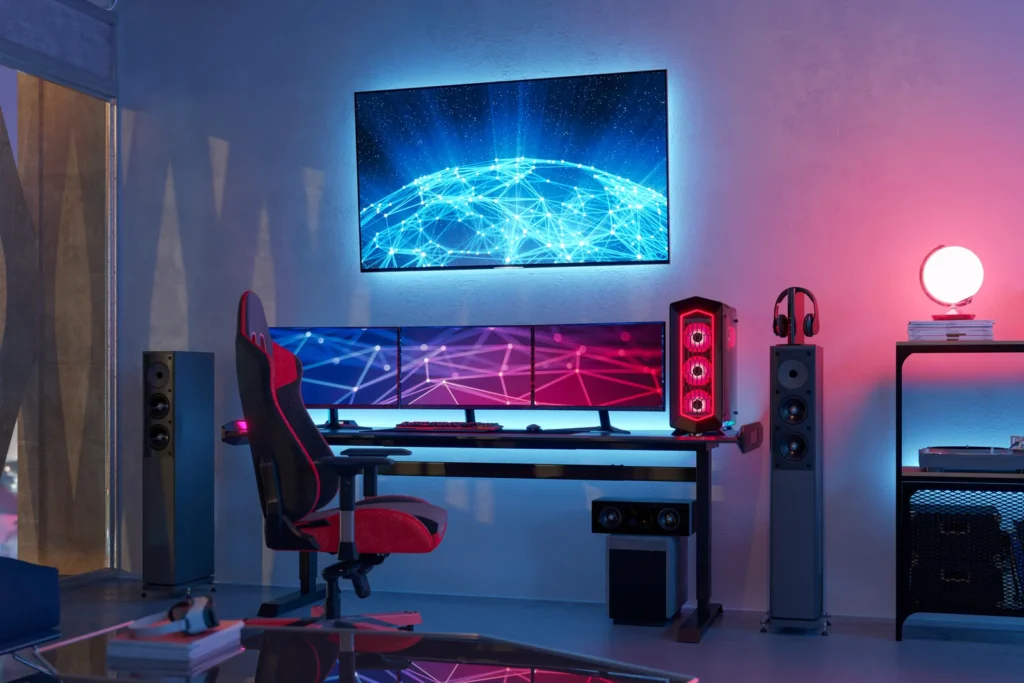
✅ Setup Dual Monitors for Work, Gaming or Study
Different users have different needs when it comes to dual monitors. Whether you’re working remotely, gaming competitively, or studying with digital materials, the right layout and settings can dramatically boost your focus and efficiency.
This section explores how to setup dual monitors Windows 11 for various real-life scenarios, helping you choose the best monitor arrangement, input methods, and software tweaks based on your goals.
Best Monitor Layouts for Workstations
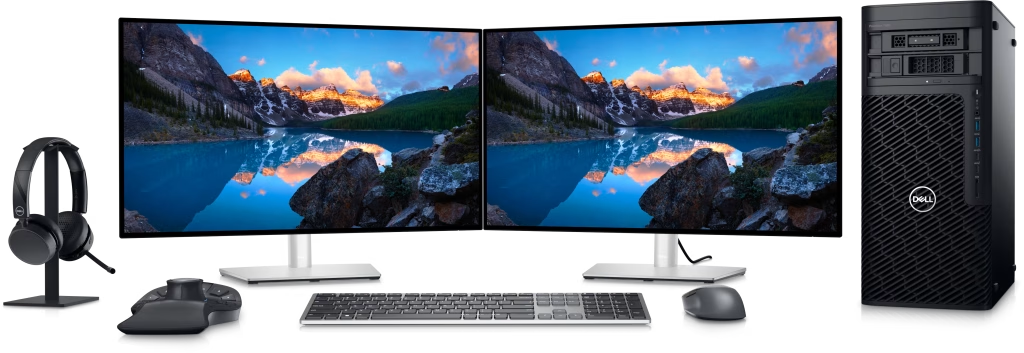
For office productivity, the classic side-by-side horizontal layout is the gold standard. It allows seamless comparison between documents, spreadsheets, and browser tabs. Set your email or chat app on one screen, and dedicate the other to your main work — such as Word, Excel, or coding.
If you frequently reference vertical content like PDFs or websites, consider rotating one monitor vertically and enabling portrait mode in Display Settings → Orientation.
💡 Pro Tip:
Setup dual monitors Windows 11: Use Microsoft PowerToys' FancyZones to create custom snap grids — ideal for dividing one monitor into focused work areas.
Dual Monitor Tips for Remote Workers
If you work from home, a dual monitor setup can dramatically improve focus and organization. One of the most effective strategies is to dedicate one screen to video conferencing tools (like Zoom or Teams) and the other to active work — such as documents, spreadsheets, or email.
Use Snap Assist in Windows 11 to quickly arrange windows on either monitor, and consider muting notifications on the primary screen during calls to reduce distractions. Additionally, turn on “Do Not Disturb” under Settings → Focus during deep work sessions. This smart approach to setup dual monitors Windows 11 gives you the feeling of a multi-room office — right at your desk.
💡 Pro Tip:
Setup dual monitors Windows 11: If your webcam is on your laptop screen, set that monitor as your meeting window — this way, you’ll maintain better eye contact during calls.
Setup for Streaming or Gaming
Gamers and streamers benefit enormously from dual monitors. One screen can be used for the game itself, while the second hosts tools like OBS Studio, chat windows (Twitch, YouTube), Discord, or even system monitoring widgets. This lets you control your stream and engage with your audience without interrupting gameplay.
To reduce system load, ensure that your primary monitor (where the game runs) is set to the higher refresh rate, and your secondary monitor handles background tasks. Use “Performance Mode” in OBS and hardware-accelerated GPU scheduling in Windows 11 for smoother performance when you setup dual monitors Windows 11 in a live broadcast environment.
💡 Pro Tip:
Setup dual monitors Windows 11: Use “Game Mode” in Windows 11 and turn off notifications on your second screen to prevent pop-ups from appearing during streams or competitive matches.
Use Picture-in-Picture or Split View Options
If you’re multitasking — like watching tutorials while working, attending online classes while taking notes, or reviewing presentations while writing — Picture-in-Picture (PiP) and Split View modes are game-changers. Windows 11 supports Snap Layouts, which let you drag a window to the screen edge and automatically resize it into a split or quadrant layout.
Some apps, like YouTube or VLC, also support built-in PiP, allowing a floating video window on one monitor while you work on the other. This makes your setup dual monitors Windows 11 not just functional but truly interactive and immersive.
💡 Pro Tip:
Setup dual monitors Windows 11: Press Win + Z on any window to activate Snap Layouts instantly and choose your preferred split-screen format — perfect for study or content review.
✅ Final Setup Checklist & Pro Tips
Before you call your dual monitor setup complete, run through this final checklist to ensure everything is configured for performance, comfort, and productivity. A properly finished setup not only looks great but also minimizes daily friction.
Whether you’re a gamer, remote worker, or multitasking pro, these last steps will help you setup dual monitors Windows 11 with confidence.
Confirm Power Saving & Sleep Settings
Go to Settings → System → Power & Battery and make sure both monitors stay active during work hours. Preventing your secondary screen from sleeping or turning off can eliminate interruptions — especially when watching videos or running background tasks like rendering or uploading.
Also, disable “turn off display after X minutes” if you’re on a desktop setup. This is especially helpful for streamers and editors working with time-sensitive applications.
💡 Pro Tip:
Setup dual monitors Windows 11: Use a custom Power Plan for dual monitor setups: high performance + no sleep + instant screen wake.
Test Display Modes in Real Scenarios
Before locking in your settings, test your dual monitor setup with actual tasks — drag apps, snap windows, run Zoom calls, switch games, or code with a vertical screen. Real-use testing helps you detect alignment issues, refresh rate mismatches, or scaling problems that might not show up during basic setup.
This is the difference between just connecting monitors and mastering setup dual monitors Windows 11 for your personal workflow.
💡 Pro Tip:
Save your current layout as a Display Profile using tools like DisplayFusion — useful if you switch between gaming and work modes.
Save Your Layout Profile for Easy Reuse.
If you move between desk setups, hotdesk at work, or switch between laptop + dock configurations, save your layout! Tools like DisplayFusion or MultiMonitorTool allow you to create display presets — resolution, position, and primary display status — that can be recalled with one click.
This helps you restore your preferred setup instantly, without repeating all the manual adjustments.
💡 Pro Tip:
Setup dual monitors Windows 11: Back up your layout profile to the cloud if you use multiple devices — consistency boosts efficiency.

Conclusion: What You Can Do Now
Setting up a dual monitor system on Windows 11 is more than just plugging in an extra screen — it’s about transforming how you work, play, and focus. From physical placement to advanced display settings and ergonomic layout, each decision you make improves comfort, clarity, and productivity.
Now that you’ve mastered how to setup dual monitors Windows 11, take a moment to optimize your environment. Whether it’s adjusting your taskbar, saving display profiles, or using FancyZones, these refinements will help you get the most out of every pixel.
🛠 Revisit your Display Settings and align your screens perfectly
🎯 Download DisplayFusion or PowerToys for enhanced productivity
🛍️ Looking for affordable dual monitor tools?
👉 Visit our eBay store – Trendigoshop for monitor arms, USB adapters & more!
✅ Explore step-by-step dual monitor setup guides, workspace layouts, and productivity toolkits at: QuickGuideHub.com
QuickGuideHub Pro Tip 💡
Discover advanced ways to setup dual monitors Windows 11 and explore free tools at QuickGuideHub.com.
❓ Frequently Asked Questions (FAQ)
Q1: Can I setup dual monitors Windows 11 using a laptop?
A1: Yes! Most modern laptops support at least one external monitor through HDMI or USB-C. With a dock or USB display adapter, you can easily connect two.
Q2: Why is my second monitor not detected?
A2: It could be due to loose cables, outdated drivers, or using the wrong display mode. Try detecting manually via Settings > Display > Detect
Q3: What’s the best layout for working with documents and video calls?
A3: Use one monitor in portrait mode for documents, and keep your video call or communication tools on the other. This setup reduces eye movement and boosts focus.
Q4: Do I need to match both monitors in size or resolution?
A4: No, but it helps. If your monitors are mismatched, adjusting scale and alignment in Display Settings ensures a smoother experience
Q5: Can I use a TV as my second monitor?
A5: Absolutely! Just make sure it has HDMI and supports PC input mode for better clarity and reduced input lag.
🖥️ Dual Monitor Setup: A Beginner’s Guide
Take your first step toward a smarter workspace. Learn how setting up dual monitors on Windows 11 enhances your multitasking, focus, and overall efficiency.
⚙️ Display Modes & Scaling: The Real Impact
Explore how resolution, refresh rate, and display scaling directly affect your workflow and comfort. Discover why properly aligning monitors makes a real difference in productivity..
🛠️ Productivity Tools That Actually Help
Use Windows-native and third-party tools like PowerToys, FancyZones, or DisplayFusion to streamline how you work across screens. We only recommend setups we’ve personally tested.
Looking for more step-by-step tutorials? See the Practical How-To Guides hub.
Related guides: A guide to the most breathtaking national parks in Scandinavia · How to start a high-quality podcast on a budget